Identity and Access Management
Moving a group
Last modified 4/3/2024
This is a step-by-step guide on how to use the Grouper user interface to move a group to a new location
- Login
- Navigate to the group you wish to move and open it
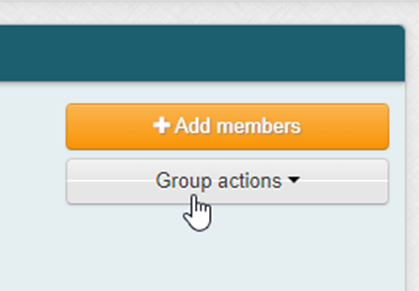
- Select drop down menu “Group actions”
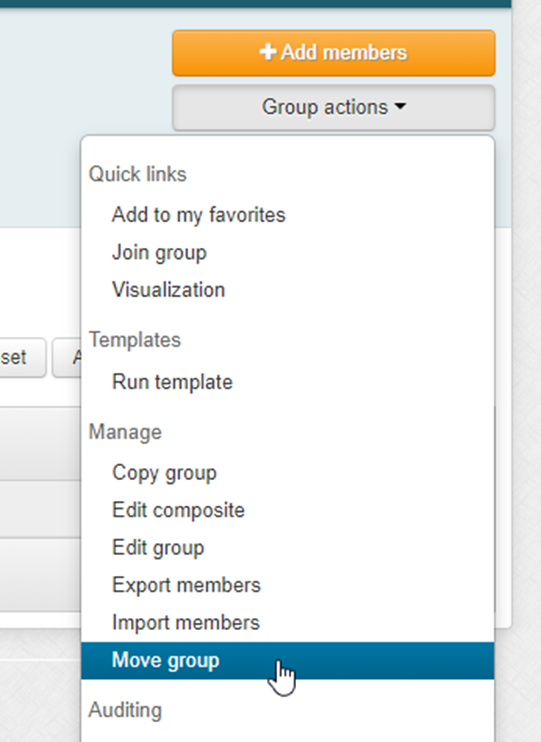
- Select “Move group”
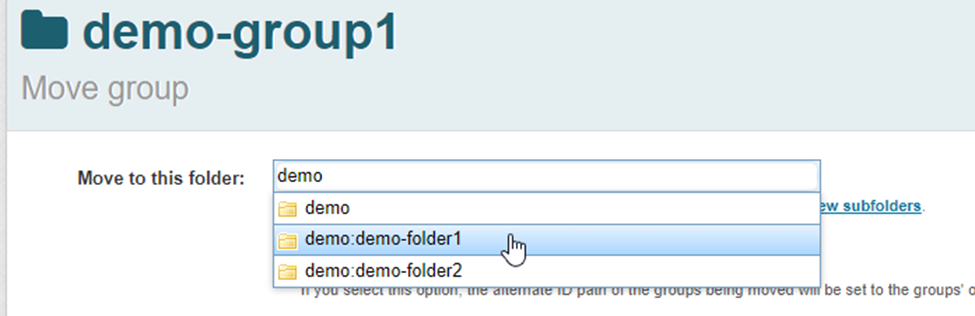
- Enter the path to the new location of the group (use auto complete function to select the destination)
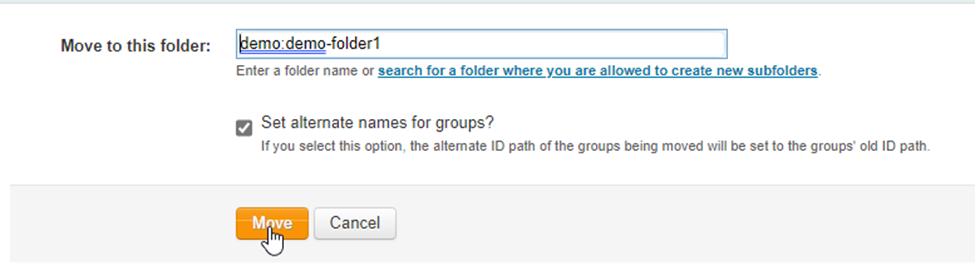
** Note: “Set alternate names for groups” will allow the group to still be referenced in its original location. Use this if the group is already in use by webservices or scripts. - Click “Move”
- You will receive confirmation that the group was successfully moved at the top of the screen

Feedback
To suggest an update to this article, ISU students, faculty, and staff should submit an Update Knowledge/Help Article request and all others should use the Get IT Help form.