Technology
Changing your Zoom Profile Picture
Last modified 11/15/2024
Follow the steps below to make a request to change your Zoom Profile Picture:
- Open an internet browser and navigate to IllinoisState.Zoom.Us via Central Login.
- For more information about Central Login at ISU, please refer to: Central Login
- Click the Profile tab to the left of your screen, then click your current profile image (See Figure 1).
Figure 1: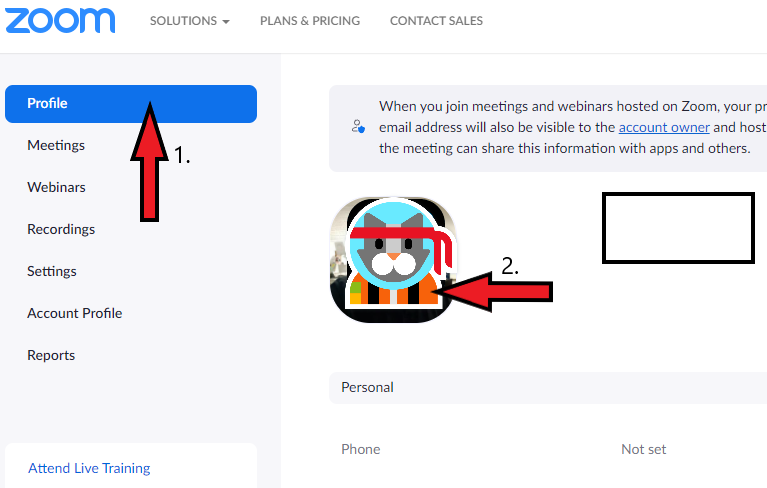
- Click the Change button to select an image to use as your profile picture.
- Crop the photo to the requested size.
- Click Save (See Figure 2).
Figure 2: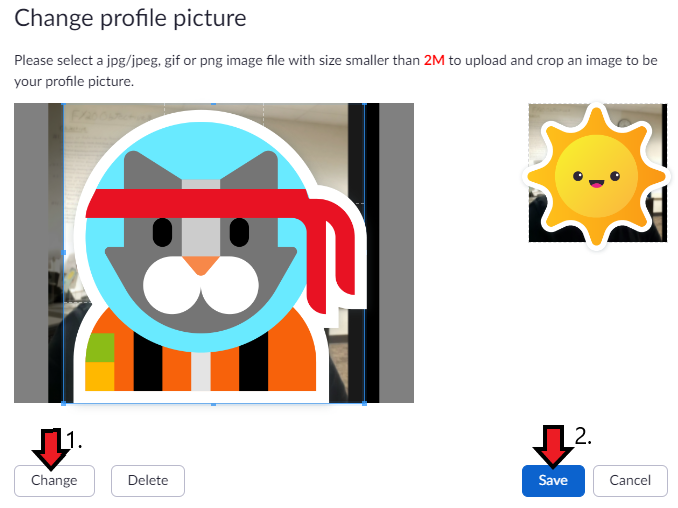
How to Get Help
Technical assistance is available through the Illinois State University Technology Support Center at:
- Phone: (309) 438-4357
- Email: SupportCenter@IllinoisState.edu
- Submit a Request via Web Form: Help.IllinoisState.edu/get-it-help
- Live Chat: Help.IllinoisState.edu/get-it-help
Feedback
To suggest an update to this article, ISU students, faculty, and staff should submit an Update Knowledge/Help Article request and all others should use the Get IT Help form.