Technology
Switching Views in a Zoom Meeting
Last modified 9/14/2023
When you are in a Zoom meeting, there are 2 different views that you can select from:
Speaker: This is the default video layout and will actively switch the large video window between who is actively speaking.
Gallery: This view will allow you to see up to 49 participants at a time in place of the large window. If you have more than 49 participants, then you will have to scroll to see the rest.
Switching Views
- When in a Zoom meeting, locate and select the View button in the upper right-hand corner, then select Gallery. (Figure 1)
Note:
Gallery view should not be used to record Zoom meetings. The meeting host should switch to speaker view prior to starting the recording due to privacy concerns.
Figure 1: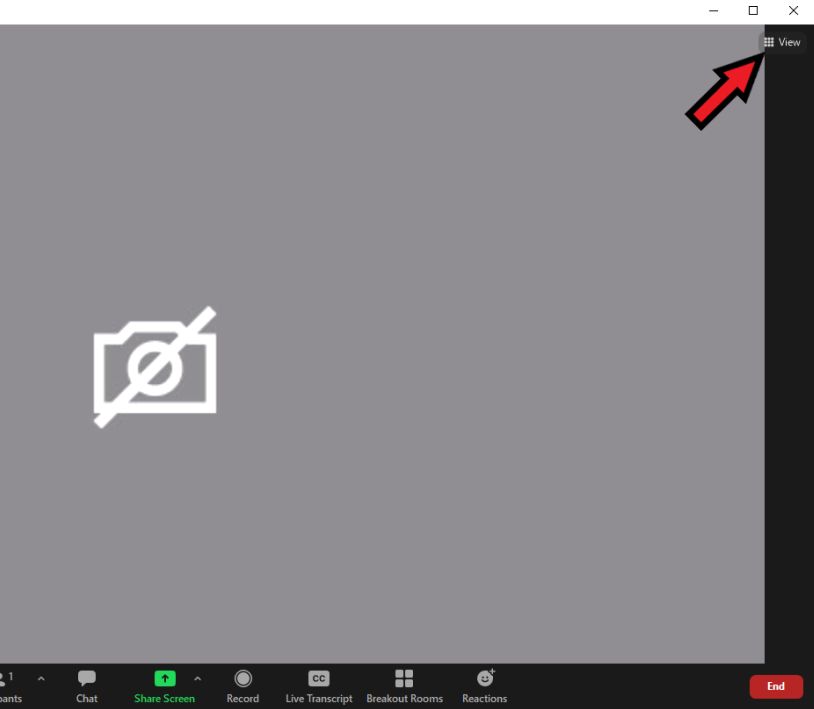
- If you would like to switch back to the Speaker view, click the Speaker option using the same button.
How to Get Help
- Technical assistance is available through the Technology Support Center at (309) 438-4357, by email at SupportCenter@IllinoisState.edu, or by Live Chat at Help.IllinoisState.edu.
Feedback
To suggest an update to this article, ISU students, faculty, and staff should submit an Update Knowledge/Help Article request and all others should use the Get IT Help form.